How Nabbit Works — Step by Step
Nabbit is a Canadian receipt capture app that photographs job site and business receipts, reads the vendor, amount, and GST/HST with AI, and syncs coded expenses to QuickBooks Online Canada automatically. Three steps, no data entry.
What Does Nabbit Actually Do?
Nabbit solves a single, costly problem: receipts disappear. The thermal paper most vendors print on fades within two to five years, and CRA requires records for six years. When receipts go missing before an audit, the Input Tax Credits they represent are denied — there is no appeal on the basis of "I know I paid HST."
Nabbit captures a permanent digital record the moment a receipt is printed. The image is stored at full resolution in a secure archive indexed by date, vendor, and amount. The GST or HST amount is extracted automatically and coded separately — so your bookkeeper does not have to calculate ITCs line by line at quarter end.
How Does the Three-Step Process Work?
-
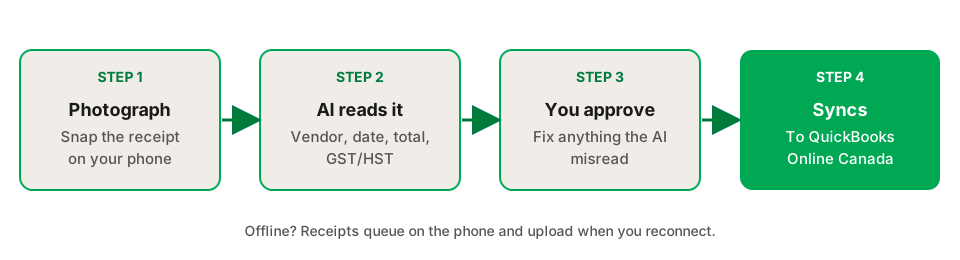
Photograph the receipt.
Open the Nabbit mobile app and snap a photo. No internet is required — receipts captured offline queue locally and upload automatically when your device reconnects. Field crews can photograph receipts at the lumber yard, supplier counter, or fuel station and the data syncs when they are back in range.
-
AI reads vendor, amount, date, and GST/HST.
Within 10–15 seconds, Nabbit's AI extracts the vendor name, transaction date, total amount, and tax. GST and HST are separated from the base amount automatically. The province is detected from the vendor location, so the correct rate is applied without any manual setup. Ontario receipts get 13% HST. Alberta receipts get 5% GST. BC, Manitoba, and the other provinces are handled the same way.
-
Review, approve, and sync to QuickBooks.
The expense appears in the Nabbit dashboard for review. You or your bookkeeper assigns the expense category (materials, fuel, meals, subcontractor), corrects any AI misread, and approves. The coded expense — including the GST/HST amount — syncs to QuickBooks Online Canada. No double entry. No spreadsheet.
Try Nabbit free for 14 days
Connect QuickBooks Online Canada in under 10 minutes. No credit card required.
Start Free Trial →Who Reviews and Approves Receipts?
Nabbit is built for businesses with more than one person. Field staff — a crew member, driver, or site supervisor — capture receipts on their own phones. The office manager, bookkeeper, or owner reviews and approves from any browser. No one needs to mail paper or share login credentials.
Your accountant or bookkeeper can access the Nabbit dashboard without touching your phone or being added to your QuickBooks subscription. They see a clean, categorised list of approved expenses ready to review at year end — instead of a box of faded thermal receipts.
Does Nabbit Work Without an Internet Connection?
Yes. The Nabbit mobile app stores receipts locally when there is no signal and uploads them automatically when connectivity is restored. This matters for trades businesses working at remote job sites, in rural areas, or in buildings with poor cell coverage.
The offline queue is unlimited. A crew member can photograph every receipt over an eight-hour shift with no internet. The entire batch syncs when they reconnect. Nothing is lost.
How Does Nabbit Handle CRA's 6-Year Retention Requirement?
CRA requires businesses to keep records for six years after the end of the tax year they relate to. Nabbit stores the original receipt image at full resolution in a secure archive alongside the coded expense data. Every receipt is indexed by date, vendor, and amount. If CRA audits your 2024 returns in 2029, you can pull every HST receipt from that year in seconds.
A digital image of a paper receipt is legally sufficient documentation for ITC claims provided it is legible and includes all required fields. Nabbit flags receipts where the vendor's HST registration number is missing. For purchases of $100 or more, that missing number is the most common reason ITCs are denied. For more on what documentation CRA requires, see No Receipt, No ITC: What CRA Requires.
How Does the QuickBooks Integration Work?
Nabbit connects directly to QuickBooks Online Canada — the Canadian version with CAD chart of accounts, province-specific HST rates, and CRA-compliant tax codes. The integration is one-way: Nabbit sends coded expenses to QuickBooks. Setup takes under 10 minutes and requires no technical knowledge.
What syncs for each receipt: vendor name (matched to your QuickBooks vendor list), date, total amount, GST/HST amount, expense category, and a link to the full-resolution receipt image. Your bookkeeper sees a complete, coded expense — not a raw line item to decode.
Frequently Asked Questions
Sources
The rules on this page come from these Canada Revenue Agency publications. Check them for the current wording, because CRA updates its guidance.
- Input tax credits, Canada Revenue Agency
- RC188 Keeping Records, Canada Revenue Agency
- Where to keep your records, for how long, and how to request permission to destroy them early, Canada Revenue Agency