Sync Receipts to QuickBooks Online Automatically
Nabbit reads every receipt — vendor, amount, date, and GST/HST — and syncs it directly to QuickBooks Online Canada. No re-entry. No spreadsheets. No missing ITCs.
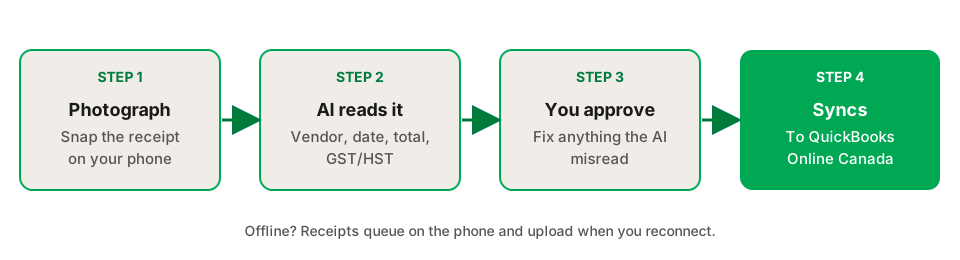
How Does the QuickBooks Integration Work?
- Capture the receipt. Snap a photo on your phone or forward an email receipt. Nabbit accepts camera photos, PDF attachments, and emailed receipts.
- AI reads the receipt. Within 10–15 seconds, Nabbit's AI extracts the vendor name, date, total amount, and GST/HST amount. The tax is separated from the base amount automatically.
- Review and approve. The expense appears in your Nabbit dashboard (or your employee submits it for your approval). Verify the coding, adjust the expense category if needed, and approve.
- Syncs to QuickBooks Online Canada. The coded expense — including the GST/HST amount — appears in QuickBooks. Your bookkeeper sees a clean, categorised expense. No double-entry.
Start your free 14-day trial
Connect QuickBooks Online Canada in minutes. No credit card required.
Start Free Trial →Built for Canadian QuickBooks Online Users
Most expense tools were built for the US market and adapted for Canada. Nabbit was built in Canada for Canadian businesses — which shows in the details that matter at tax time.
GST/HST is automatic, not a setting. Every receipt Nabbit reads has its GST or HST extracted and coded separately. Input Tax Credits (ITCs) are tracked per transaction, so your QuickBooks GST/HST report is accurate at quarter end — without a spreadsheet reconciliation.
CAD by default. Every amount is in Canadian dollars. No currency conversion, no US defaults, no surprises on your QuickBooks reports.
CRA 6-year archive. Nabbit stores the original receipt image at full resolution alongside the coded expense. If CRA audits your 2024 returns in 2029, you can pull any receipt by date, vendor, or amount in seconds.
Province-specific HST rates. Ontario 13%, BC 5% GST + 7% PST, Alberta 5% GST. Nabbit applies the correct rate per receipt location — no manual tax code setup required.
What Does Nabbit Send to QuickBooks?
| Feature | Details |
|---|---|
| QuickBooks version | QuickBooks Online Canada (QBO CA) |
| Sync direction | Nabbit → QuickBooks (one-way) |
| What syncs | Expense, vendor, amount, date, tax, category, receipt image link |
| Tax handling | GST/HST extracted and coded automatically per receipt |
| Currency | CAD only |
| Chart of accounts | Maps to your existing QBO CA chart of accounts |
| Multi-user | Yes — field staff capture, managers approve, bookkeeper views in QBO |
| Approval workflow | Yes — required before expenses sync |
| Setup time | Under 10 minutes |
| Support | Canadian business hours via email |
Who Uses Nabbit With QuickBooks?
Trades and contractors. Field crews capture receipts at the supplier, lumber yard, or job site. Materials, fuel, and equipment expenses arrive in QuickBooks coded and categorised — without the pile on the dashboard at month end.
Professional services firms. Consultants, accountants, and agencies with client-billable expenses need clean records. Nabbit separates billable from non-billable expenses at capture and syncs them correctly to QuickBooks projects.
Retail and hospitality. Businesses with frequent vendor purchases and high receipt volume benefit from Nabbit's speed — ten receipts captured and synced in under five minutes.
Growing teams. When you add your fifth employee, the manual receipt collection process breaks down. Nabbit's team workflow scales without adding bookkeeping hours.
Frequently Asked Questions
Connect QuickBooks Online Canada in minutes
14-day free trial. No credit card required. Most businesses sync their first receipt the same day they sign up.
Start Free Trial — No Credit Card Required →Sources
The rules on this page come from these Canada Revenue Agency publications. Check them for the current wording, because CRA updates its guidance.
- Input tax credits, Canada Revenue Agency
- RC4022 General Information for GST/HST Registrants, Canada Revenue Agency
- RC188 Keeping Records, Canada Revenue Agency