How to Track GST/HST Input Tax Credits (ITCs) for Your Business
If your business is registered for GST/HST, you can reduce the amount you remit to CRA by claiming Input Tax Credits (ITCs) for the GST/HST you paid on business expenses. For a Canadian SMB with $500,000 in taxable expenses, this can mean $65,000 in recoverable HST per year. Most businesses underclaim because they lack a systematic tracking process.
What Is an Input Tax Credit?
An ITC is the GST or HST you paid as a business expense that CRA allows you to deduct from the GST/HST you collected. You remit the difference.
Example (Ontario, 13% HST): You collected $1,300 HST from clients in Q1. You paid $400 HST on business expenses in Q1. Your net remittance to CRA: $1,300 − $400 = $900. Without tracking the $400 in paid HST, you would remit the full $1,300 and leave $400 on the table — every quarter.
What Qualifies for an ITC?
To claim an ITC, the expense must: be a business expense (not personal); have been made in your tax period; be supported by a valid receipt that shows the vendor's GST/HST registration number (for purchases of $100 or more); and be for a purpose at least partly related to generating taxable income.
Common expenses where ITCs are missed: office supplies purchased without saving the receipt; business meals where the server's receipt is discarded; software subscriptions where the invoice does not show a Canadian GST/HST registration number; and contractor invoices that do not include the contractor's GST/HST number.
How to Track ITCs Systematically
- Capture every receipt at the time of purchase. An expense without a receipt cannot support an ITC claim. Photograph or scan the receipt immediately — do not rely on memory or bank statements.
- Record the tax amount separately. In QuickBooks Online Canada, each expense entry should include the base amount and the GST/HST amount as separate fields, using QBO's native GST/HST tax code system. This is what generates your GST/HST detail report at filing time.
- Reconcile at quarter end. Before filing your GST/HST return, pull the HST/GST Expense Detail report from QuickBooks. Compare the total ITCs to your receipt archive to confirm every ITC has a supporting document.
- File using the net method. On your GST/HST return (Form GST34), line 106 is your total ITCs. Enter the reconciled amount from QuickBooks here. Your net remittance is line 105 (GST/HST collected) minus line 106 (ITCs).
Where Do Businesses Go Wrong Tracking ITCs?
Missing receipts. The most common error. If CRA audits your ITC claim and you cannot produce the receipt, the ITC is denied. Save every receipt — no exceptions.
Using bank statements instead of receipts. Bank statements show what you paid, not what you bought or whether HST was charged. CRA does not accept bank statements alone as ITC documentation.
Not checking the HST registration number. For purchases of $100 or more, CRA requires the supplier's GST/HST registration number on the receipt. If your supplier is not registered for HST (businesses under $30,000 in revenue are not required to register), you cannot claim an ITC on their invoices.
Claiming personal expenses. Mixed personal/business expenses (like a phone used for both) must be prorated. Claiming 100% of a mixed-use expense is a common audit trigger.
How Does Nabbit Automate ITC Tracking?
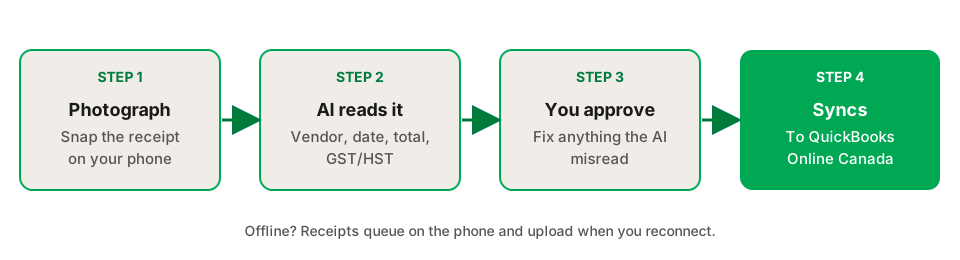
Nabbit reads the GST or HST amount directly from every receipt image and records it as a separate tax field before syncing to QuickBooks Online. Instead of manually entering tax codes, every expense arrives in QuickBooks already coded with the correct GST/HST amount. At quarter end, your QuickBooks GST/HST report gives you the exact ITC total — no spreadsheet, no manual reconciliation.
What Does a Correctly Tracked ITC Look Like in QuickBooks Online Canada?
In QuickBooks Online Canada, each expense transaction has a "Tax" field where you apply the appropriate rate code. For Ontario expenses, the correct code is "HST ON (13%)". For Alberta, it is "GST (5%)". When the code is applied correctly, QuickBooks splits the transaction into the base amount and the tax amount, and records the tax amount as a recoverable ITC.
At filing time, the GST/HST Expense Detail report (found under Reports → Taxes) shows you every expense entry for the period with its tax amount broken out. The total of the Tax Amount column is the number that goes on line 106 of your GST34 return. Line 105 is the GST/HST you collected; your net remittance is line 105 minus line 106.
A common setup error is applying a "No Tax" or "Exempt" code to expenses that actually had HST charged. The expense records correctly in your profit and loss, but the ITC never makes it into line 106. Over a quarter of business spending, this error can mean hundreds of dollars of recoverable tax that was never reclaimed.
How Do ITCs Work at Different HST Rates Across Provinces?
Canada has three GST/HST rate tiers that affect ITC amounts differently. Ontario, New Brunswick, Newfoundland and Labrador, Nova Scotia, and Prince Edward Island apply HST at rates between 13% and 15%. British Columbia, Manitoba, Saskatchewan, and Quebec apply GST at 5% separately from provincial sales tax — and provincial sales tax (PST/QST) is generally not recoverable as an ITC, only the federal 5% GST portion is.
Alberta, the Northwest Territories, Nunavut, and Yukon apply only GST at 5% with no provincial sales tax component. For businesses that operate across multiple provinces, the recoverable amount per dollar of expense depends on where the purchase was made — not where the business is headquartered. A Manitoba-based contractor buying supplies in Ontario is entitled to claim the Ontario HST at 13%, not Manitoba GST at 5%.
QuickBooks Online Canada handles this automatically when the correct province-specific tax code is applied to each transaction. The error occurs when a single default tax code is applied regardless of where the purchase was made, understating ITCs for out-of-province transactions in higher-rate provinces.
Track ITCs automatically — never leave money with CRA
Nabbit reads GST/HST from every receipt and syncs it to QuickBooks Online Canada. 14-day free trial.
Start Free Trial →Sources
The rules on this page come from these Canada Revenue Agency publications. Check them for the current wording, because CRA updates its guidance.
- Input tax credits, Canada Revenue Agency
- RC4022 General Information for GST/HST Registrants, Canada Revenue Agency
- Where to keep your records, for how long, and how to request permission to destroy them early, Canada Revenue Agency